Arc en Ciel help
Set up Arc en Ciel Link
Connect local or hosted Stable Diffusion tools to Arc en Ciel with Link Keys, sidecars, and model inventory.
Before you start
- A signed-in account.
- A supported local or hosted tool with the Arc en Ciel Link Forge, ComfyUI, or SwarmUI extension.
- Permission to create or manage Link Keys.
Quick answer
- Install the local Link integration, create a dedicated Link Key, paste it into the local tool, then restart or reload the tool.
- Open Link Hub at /link and choose Add device to verify the device connection, model folder, test transfer and cleanup.
- Keep Link Keys out of screenshots, shared workflows, Discord messages, and committed config files.
What Link does
Arc en Ciel Link is the bridge between your account and local Stable Diffusion tooling. It can help local tools understand which resources you downloaded, which base models exist locally, and how sidecar metadata maps Arc en Ciel resources to files on disk. Link is for local convenience; it is not a reason to expose API keys, Link Keys, or local paths publicly.
Setup steps
- Install the supported local integration, such as the Arc en Ciel Link ComfyUI extension.
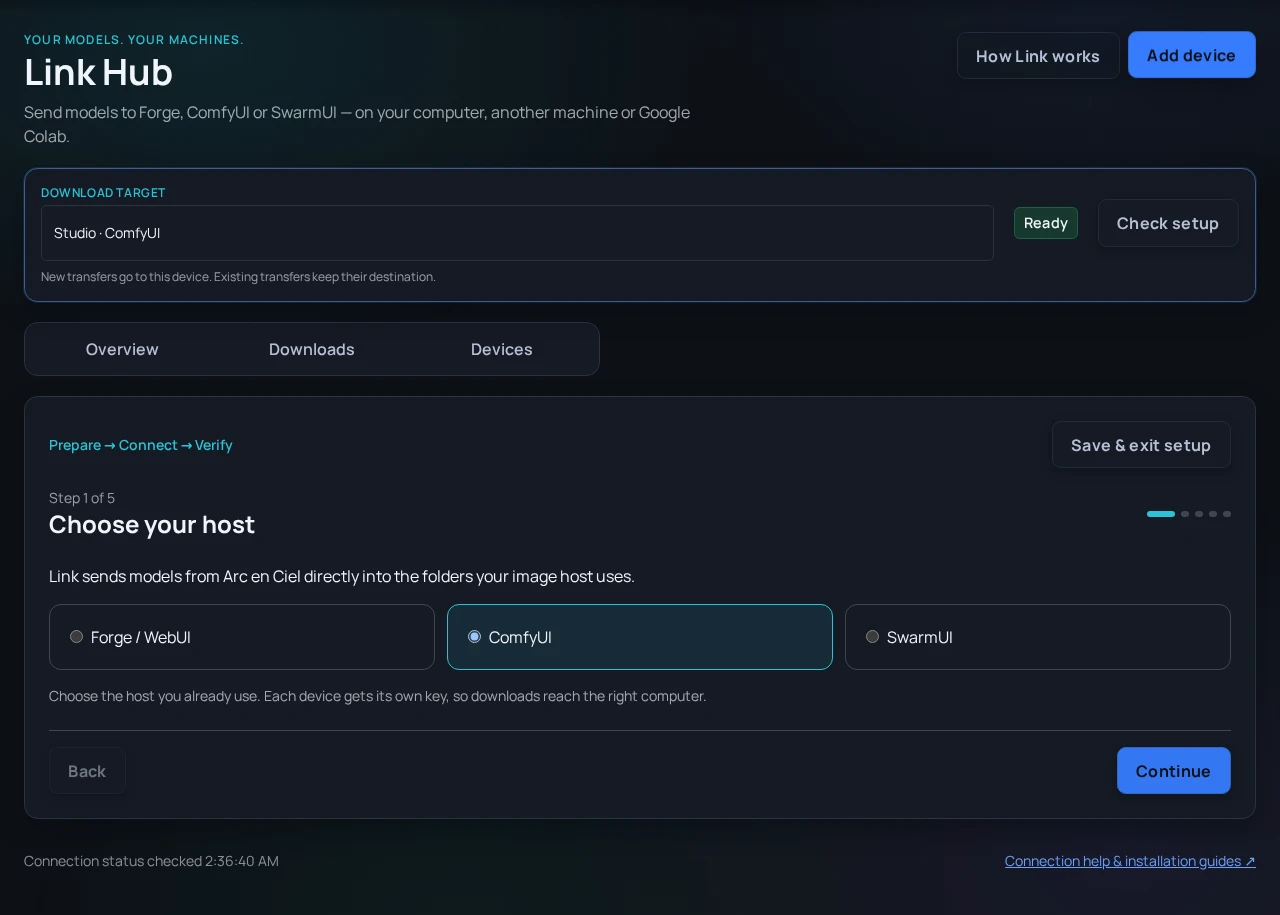
- Open Link Hub and choose Add device. Select Forge/WebUI, ComfyUI or SwarmUI, then This computer, Another computer or Google Colab.
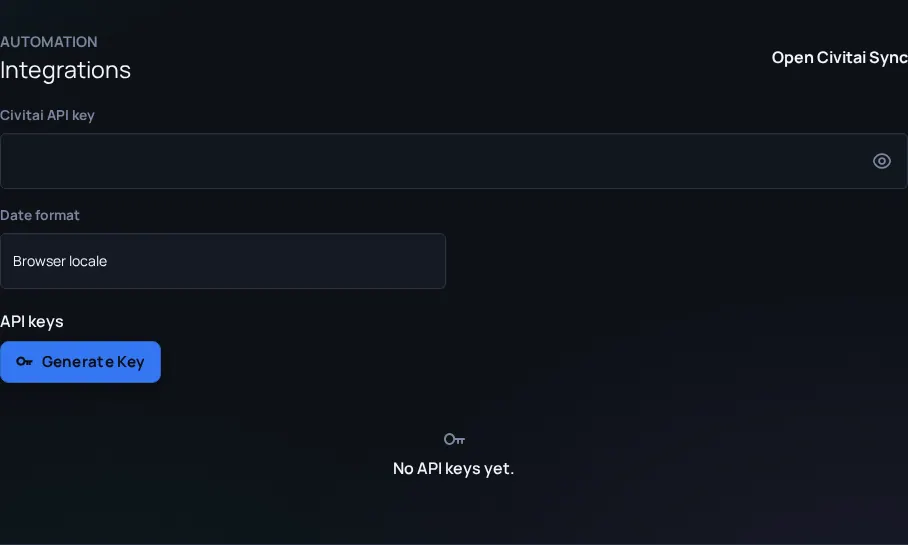
- Name the device and create a key, or import your existing key. Keep a separate key for each running device.
- Copy the key once and store it in the local extension configuration, not in screenshots or shared workflows.
- Start or reload the local tool so it can connect to Arc en Ciel.
- In Link Hub setup, use Search this computer only for a local host, or choose Another computer / Google Colab. A failed connection stays on the selected endpoint.
- Check the Link panel or extension logs for connection state. Switching the selected key leaves other devices running.
- Confirm local base models and downloaded resources appear as expected before starting generation workflows.
Find your way around Link Hub
Overview shows active transfers and recent results. Downloads searches your complete history and provides status/device filters and pages. Devices contains connection help, setup checks, folders, tools and access settings. The download target stays visible across sections; changing it affects new transfers only. How Link works reopens the short optional guide. Save & exit setup keeps non-secret setup choices for this browser session.
Verify before your first model
In Link Hub, refresh the connection and run the 4 KiB setup check. The worker writes into its actual model folder, reads back and verifies the file hash, then removes the test file. Finish setup appears only after this succeeds. Older extensions still download; update to 2.4.1 or newer for current setup verification and device tools.
Local search runs only after you click Search this computer. Allow local network access if your browser asks. Another computer and Google Colab connect directly without a local browser scan. A successful small check does not guarantee enough free space for a large model.
Google Colab and hosted WebUIs
A browser tab cannot call a loopback bridge inside a separate Colab runtime. Hosted workers instead connect outbound to Arc en Ciel with the same dedicated Link Key; port 8501 stays private and does not need a tunnel.
- Create a dedicated device key in Link Hub and copy it into the notebook privately.
- Add it to the Colab Secrets panel with the name ARCENCIEL_LINK_KEY. Do not paste it into a shared notebook cell.
- Use the versioned Link setup notebook for extension 2.3.0 or newer before starting Forge/WebUI, ComfyUI, or SwarmUI. It verifies the existing host and loads the secret before startup.
- On arcenciel.io, sign in and select the notebook in the Link Hub download target bar. An existing device can be selected without copying its key into this browser.
- Use Google Colab as the device location. If the runtime is offline, restart its host and enable Link; selecting a device does not start its runtime.
- Confirm the extension log reports protocol 2 and the Link panel becomes connected before queueing a model.
All three workers accept ARCENCIEL_LINK_URL, ARCENCIEL_LINK_KEY, and ARCENCIEL_LINK_ENABLED before startup. Environment settings take precedence over saved settings; an empty secret prevents startup. Pause and resume remain available, and a restart reapplies the configured enabled state. To change an environment-managed key, update the secret and restart the host.
| Piece | Purpose |
|---|---|
| Link Key | Authenticates the local integration to your account for Link worker and inventory actions. |
| Sidecar metadata | Stores resource metadata next to local files so tools can map names, hashes, and source context. |
| Local base inventory | Tells the integration which base models are available locally. |
| Download history | Helps connect Arc en Ciel resources to files you previously saved. |
Security checklist
- Use a dedicated Link Key - Do not reuse a broad API key for local Link. Link workers should use Link Keys.
- Do not commit config files - Local extension settings can contain secrets or machine-specific paths.
- Rotate keys after sharing logs - If a key may have appeared in a screenshot or log, delete it and create a new one.
Setup problems
Key rejected
Likely cause: Copied incorrectly, expired, deleted, or missing required scope.
Fix: Create a fresh Link Key and paste it into the local integration without extra whitespace.
Connected but no local models appear
Likely cause: Local base directory or sidecar path is not configured.
Fix: Check extension settings and rescan local inventory.
Colab worker stays offline
Likely cause: The runtime started before ARCENCIEL_LINK_KEY was loaded, or the browser key and Colab secret do not match.
Fix: Set the Colab secret, run the Link setup cell before the WebUI startup cell, and restart the runtime after changing the key.
Wrong model matched
Likely cause: Hash or sidecar metadata is missing or stale.
Fix: Regenerate sidecars or verify hashes in the local folder.