Arc en Ciel help
Publish images, videos, and articles
Upload media and long-form content with ratings, metadata, tags, schedules, and useful descriptions.
Before you start
- Artist role for image/video publishing or Creator role for broader publishing.
- Prepared files and a rating decision.
Choose the right publishing workflow
Images, videos, and articles share the same publishing goal, but they need different preparation. Media needs accurate rating and metadata. Articles need structure, headings, links, and a preview that makes the topic obvious before a reader opens it.
| Type | Focus | Watch out for |
|---|---|---|
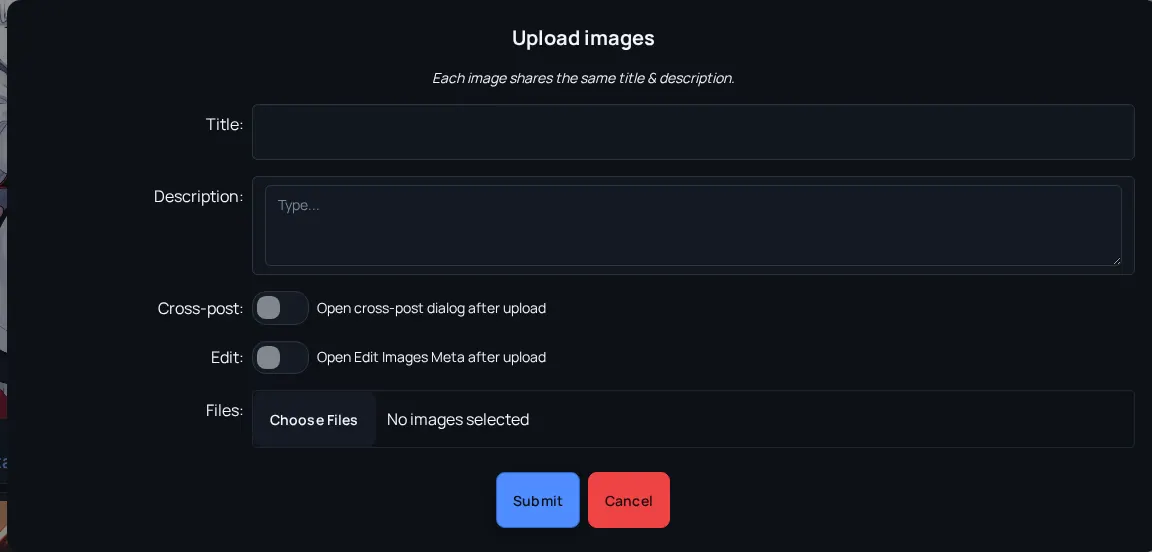
| Images | Prompt context, rating, model references, visual tags. | Incorrect adult/sensitive rating or missing prompt explanation. |
| Videos | Playback quality, thumbnail, rating, source context. | Large files, unsupported formats, and unclear duration/quality. |
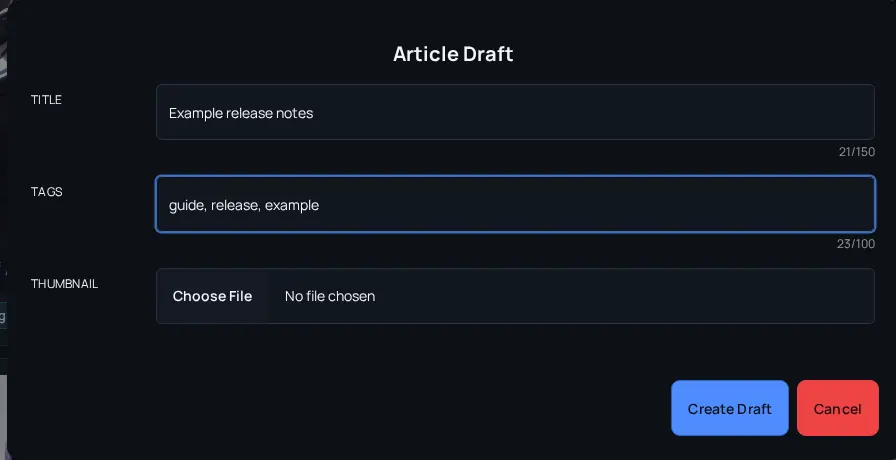
| Articles | Headings, explanation, links, and release notes. | Walls of text without sections or stale links. |
Publish and verify metadata
- Open the matching upload or create action for the content type.
- Add a title and summary that explain what the viewer will get. On multi-image uploads, the title and description are shared unless you open the metadata editor afterwards.
- Set rating and tags before publishing so the item appears in the correct places.
- Attach model/source references when the item demonstrates a specific resource.
- For images attached to a model version, check whether matching Discord uploads are available before reuploading the same files.
- Use scheduling only when the item is complete enough to stand on its own at release time.
- Preview the published state and fix missing metadata quickly after release.
Pre-publish quality pass
- Title is understandable outside your profile - Search results may show only title and summary.
- Rating matches visible content - Rating mistakes are discoverability and safety problems.
- Tags are useful, not exhaustive - A few strong tags beat a noisy tag pile.
- Description includes context - Mention workflow, model, prompt intent, or series context when useful.
Common upload issues
Upload button is disabled
Likely cause: Your role, read-only state, or current page context does not allow this upload type.
Fix: Check posting rights and whether the upload belongs on Images, Videos, Articles, or a model version page.
Discord images are not offered in the upload dialog
Likely cause: The dialog only shows existing Discord uploads when you are adding images to a specific model version and matching uploads exist.
Fix: Open the model version image upload flow, then use "Use existing Discord uploads" when candidates are found.
Media appears in the wrong audience filter
Likely cause: Rating or tags were set too broadly or too narrowly at publish time.
Fix: Edit rating, tags, and description immediately so discovery and safety filters catch up with the intended audience.