Arc en Ciel help
Publish models and versions
Create a model page, add versions, attach files, and make the release understandable before people download it.
Before you start
- Creator role or staff access.
- Model files and preview media prepared.
- A clear base model and license/source context.
Quick answer
- Create the model page first, then add one or more versions with files, base model, trigger words, and preview media.
- Before publishing, open the page like a downloader would: title, rating, tags, file source, and version notes should all make sense.
- If Civitai export is enabled, queue it only after the Arc page already looks ready.
Before you create the model page
A model page should answer the questions a downloader has before they touch the file: what is this, which version should I use, what base model does it expect, and what should I watch out for? Clear release notes save you from repeated comments later.
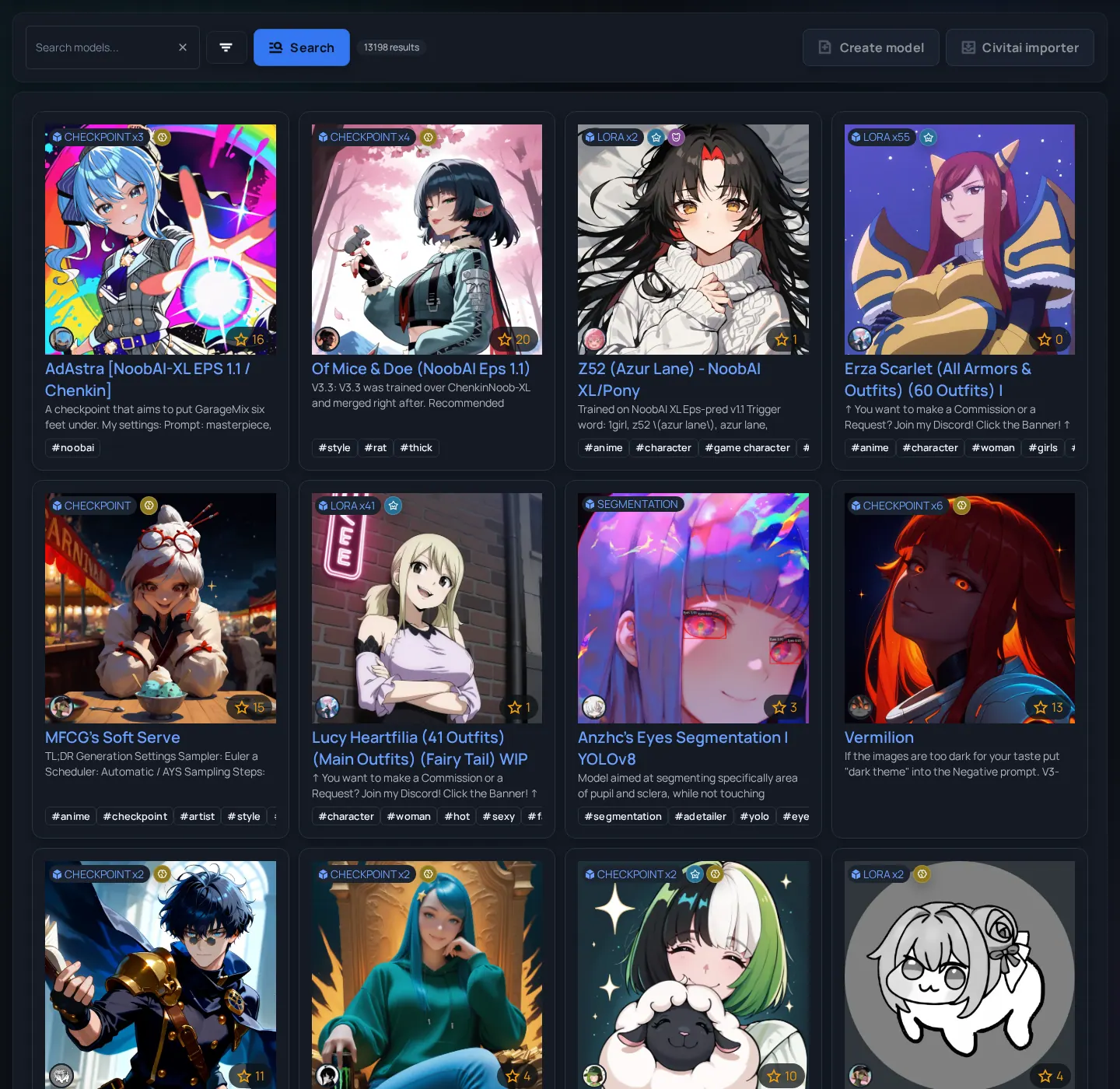
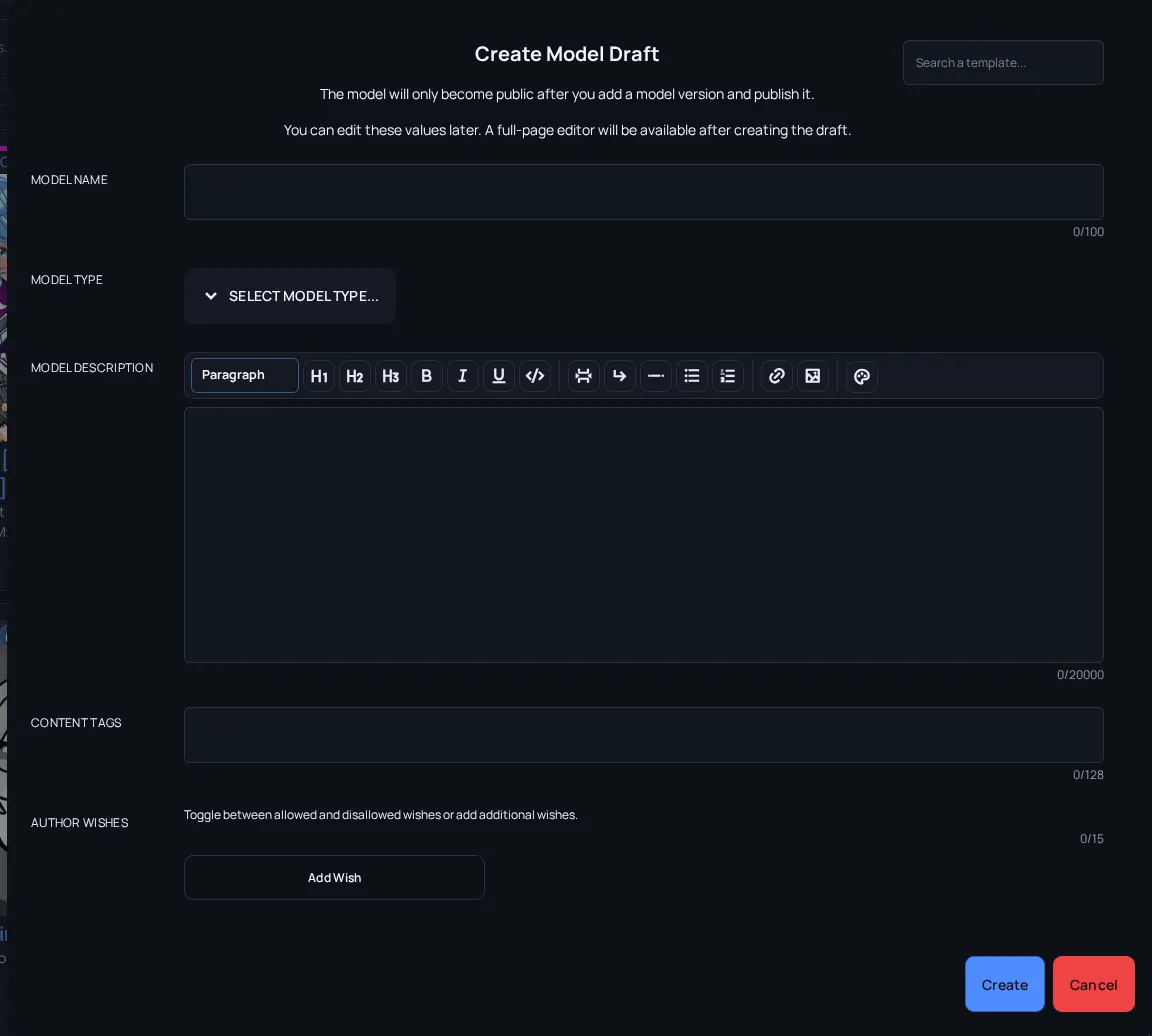
Model release checklist
- Use a clear title - Avoid version numbers in the model title if versions will carry that information.
- Pick the correct type and base model - Checkpoint, LoRA, embedding, and related resources are not interchangeable.
- Write a usage summary - Mention trigger words, recommended weight, known limitations, and intended base model.
- Attach representative previews - Use examples that show expected behavior, not only best-case output.
- Verify file safety fields - Hosted files should have hashes and scan state; external files need transparent source context.
Version workflow
After the model draft exists, add the actual version people can download. A draft without a version is fine while you edit, but it is not useful to users yet.
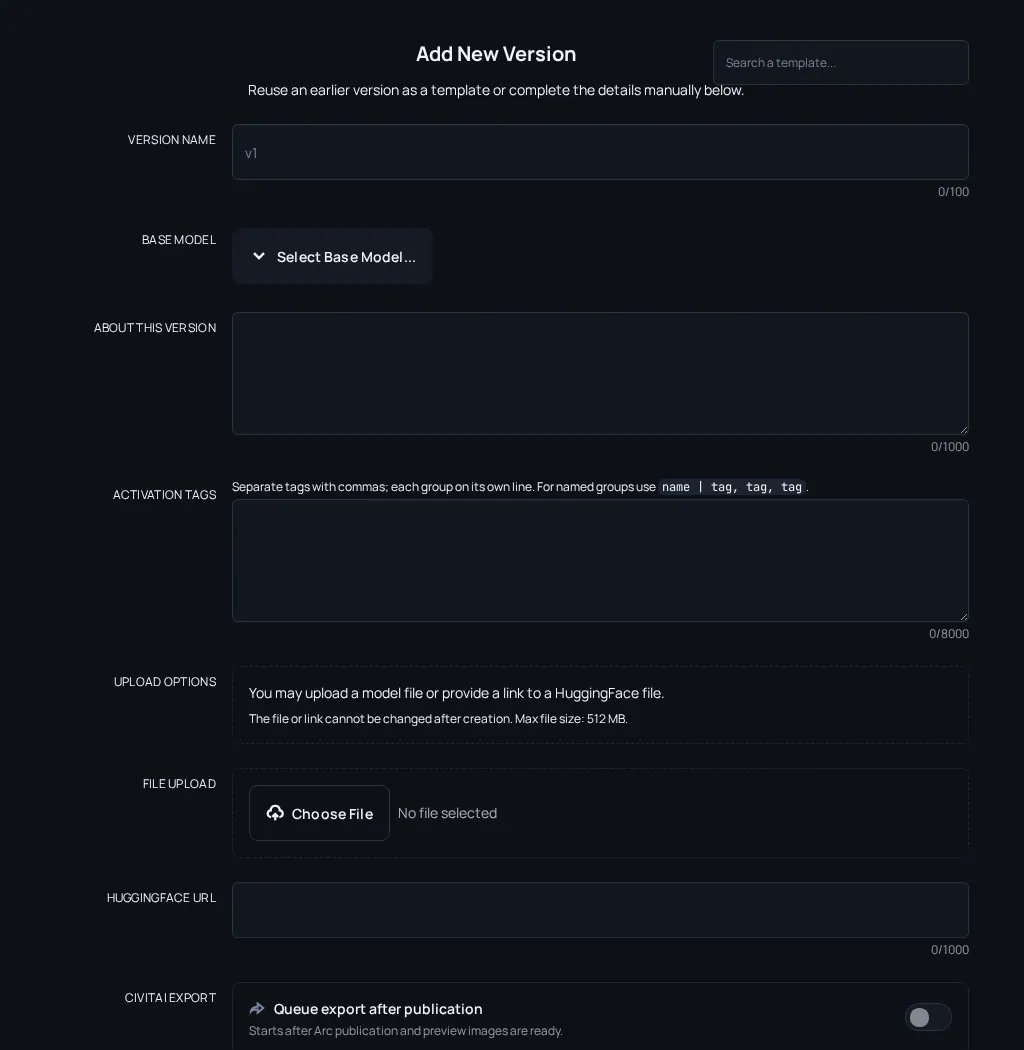
- Create or open the model page.
- Add a version with a version name that users can distinguish later, such as v1, pony-v2, fp16, beta, or training-fix.
- Choose the source: upload a local file when Arc en Ciel should host it, or paste a Hugging Face URL when the file stays external.
- Set the base model family before publishing so users know where the file belongs.
- Write "About this version" for what changed, what was trained, recommended weights, trigger words, and known failure modes.
- Add activation tags when the model needs specific trigger words. Keep them short and testable.
- Add preview media and make sure rating metadata matches the visible content.
- Publish immediately or schedule the release only after the public page looks complete.
| Field | Why it matters |
|---|---|
| Base model | Helps users avoid loading the file into the wrong checkpoint family. |
| Version name | Lets users understand updates, forks, fixes, and previews. |
| Trigger words | Makes LoRAs and embeddings testable without guessing. |
| File hash | Lets users check that their download matches the expected file. |
| Rating | Controls whether previews appear for viewers with restricted content settings. |
Queue Civitai export while publishing
If Civitai export is available for your account, the version dialog can queue a Civitai draft while you publish. Use this when Arc en Ciel is the page you want to polish first, and Civitai should receive the release afterwards.
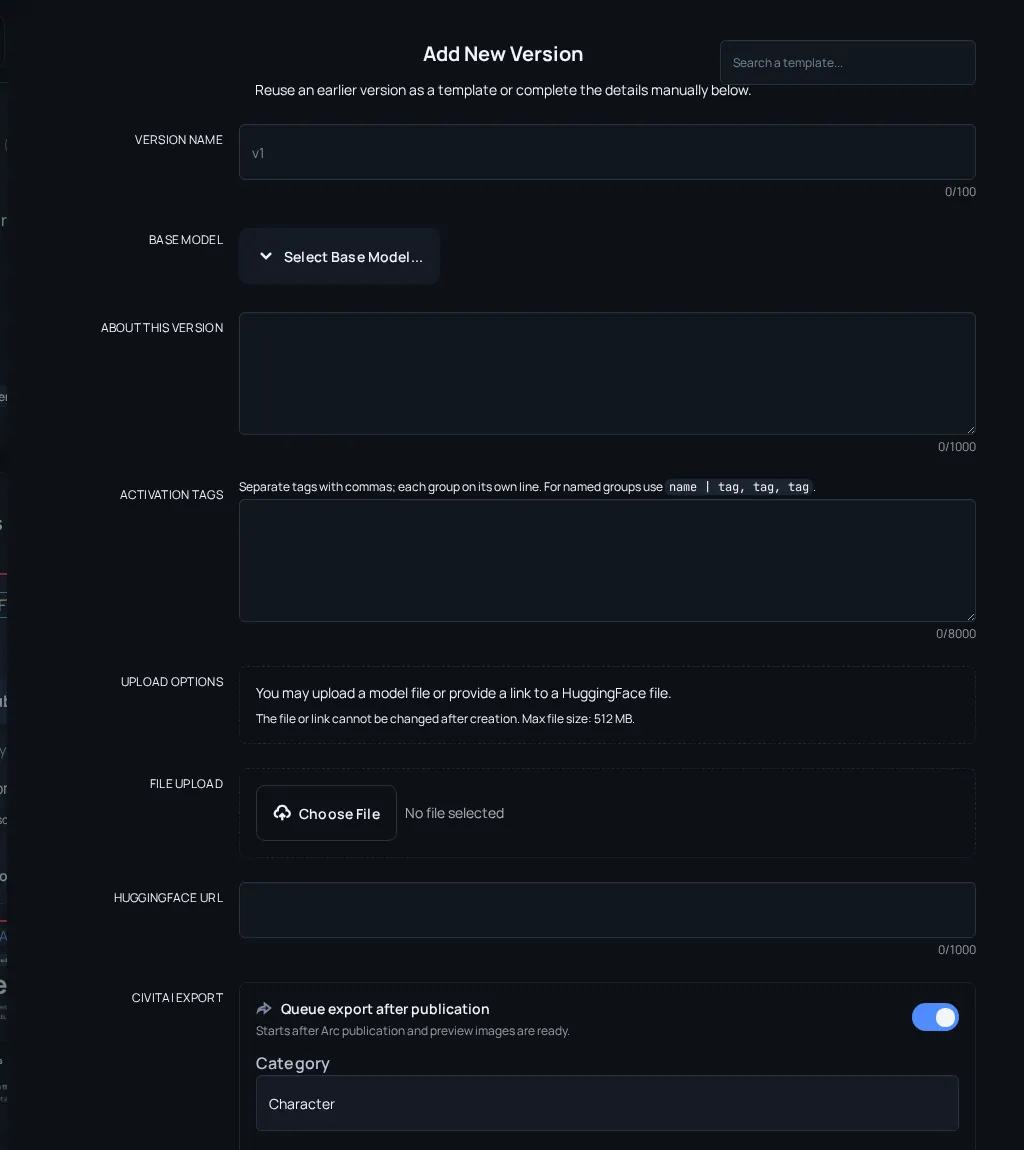
Civitai export choices in the version dialog
- Category - Pick the closest Civitai category so the remote page lands in the right place.
- Draft - Keeps the remote Civitai item private for manual review.
- Publish after export - Lets Civitai go public after Arc publication, upload, and preview images are ready.
- Schedule publish - Uses Civitai scheduling. Leave enough time for Arc publication, upload, and Civitai processing.
- Delay minutes - Use advanced delay when Arc should wait before starting the export after publication.
If publish fails or controls are missing
Create button is missing
Likely cause: Your role may not include model publishing.
Fix: Check Roles and posting rights or ask for Creator access.
Upload succeeds but version looks incomplete
Likely cause: Processing, scanning, or metadata extraction may still be pending.
Fix: Wait for the version state to settle, then review hashes and scan labels.
Users report wrong compatibility
Likely cause: Base model, version notes, or trigger words are incomplete.
Fix: Edit the model/version description and add explicit usage notes.
Civitai export option is missing
Likely cause: The exporter may be disabled, credentials may be missing, or your role may not include export access.
Fix: Check Settings, Creator Sync, and exporter availability before assuming the form is broken.