Arc en Ciel help
Roles and posting rights
Why some buttons only appear for certain roles, and how to request posting access.
Quick answer
- If an upload or create button is missing, first check your role, email verification, ownership, and whether that feature is enabled.
- Artist usually covers media posting. Creator covers broader publishing such as models, versions, articles, images, and videos.
- Use Apply when you want posting access, and ask for the smallest role that matches what you plan to publish.
Role map
Roles decide which buttons you see. Browsing, media posting, model/article publishing, moderation, and admin controls are separate on purpose. If a button is missing, the usual reasons are role, verification, ownership, or a temporarily disabled feature.
Typical role capabilities
- Visitor: Browse public content and trust/legal pages. Not for: Comment, follow, manage settings, or publish.
- USER: Use normal account features such as settings, comments, follows, notifications, and history. Not for: Publish creator content unless separately approved.
- ARTIST: Publish image and video media where the upload workflow is enabled. Not for: Publish models or articles unless upgraded.
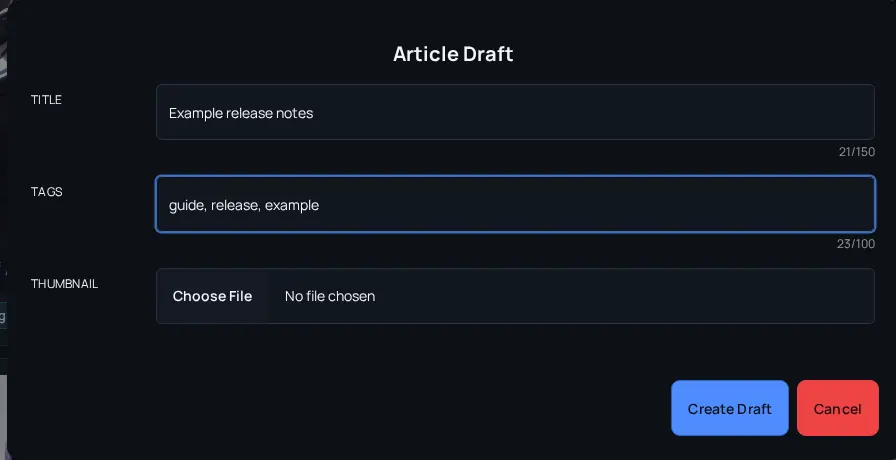
- CREATOR: Publish models, versions, articles, images, videos, and use creator integrations where enabled. Not for: Use staff moderation or admin controls.
- MODERATOR: Use moderation tools and review workflows. Not for: Use Admin-only configuration panels unless also Admin.
- ADMIN: Access administrative, preview, and configuration surfaces. Not for: Bypass legal, security, or audit expectations.
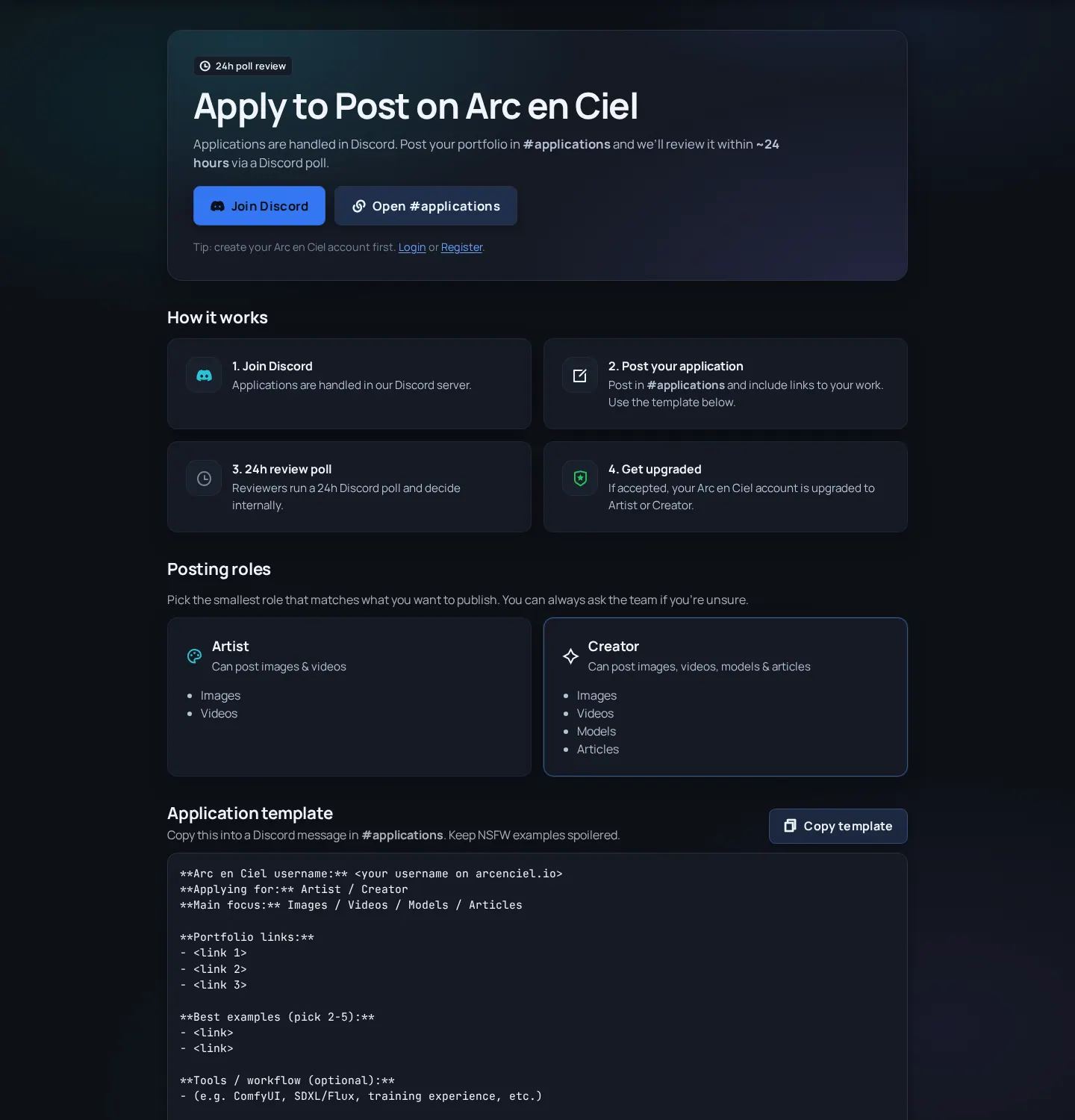
How to apply for posting access
- Open Apply and read the difference between Artist and Creator.
- Prepare links or examples that show what you want to publish.
- Join or contact the community route listed on Apply, usually Discord-based.
- Ask for the smallest role that matches your planned work.
- After approval, refresh the site and check whether upload or create buttons appear on the relevant pages.
If posting controls are missing
- Confirm the role shown on your profile or user menu - A fresh login may be needed after a role change.
- Check whether the content type matches your role - Artist and Creator do not unlock identical upload surfaces.
- Check ownership - Editing an existing item may require you to be the owner or staff.
- Check feature state - Some workflows can be temporarily disabled during maintenance.
Related links
- Apply - Request posting access through the public application route.
- Accounts, login, and verification
- Publish models and versions